PCIe bifurcation is the process of splitting PCIe lanes. It answers a simple question: should a group of PCIe lanes from the CPU or chipset work as one wide link, or be split into multiple narrower links for different devices?
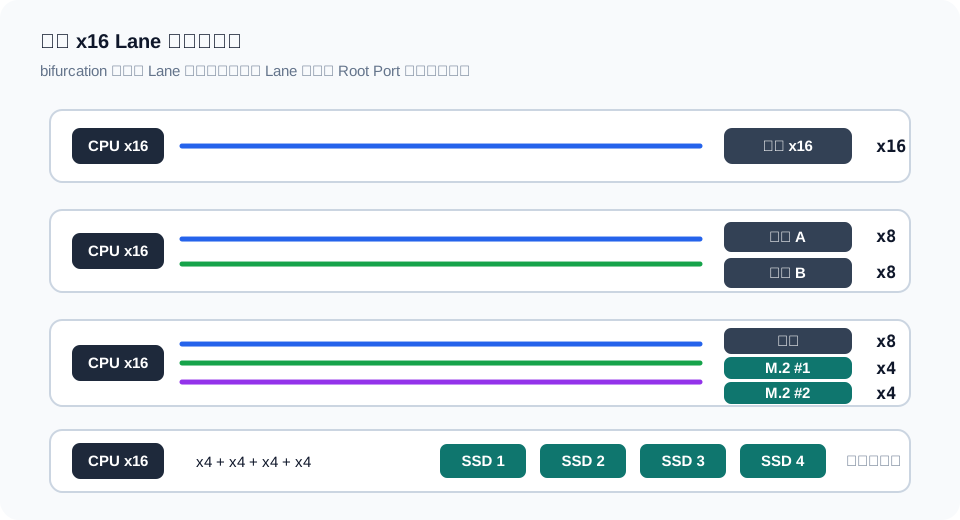
For example, a group of 16 PCIe lanes can be configured as x16, split into x8+x8, or split into x8+x4+x4. This is the basis behind a motherboard running one graphics slot at full x16, two graphics slots at x8 each, or one graphics slot plus two CPU-attached M.2 slots.
What Is a PCIe Lane
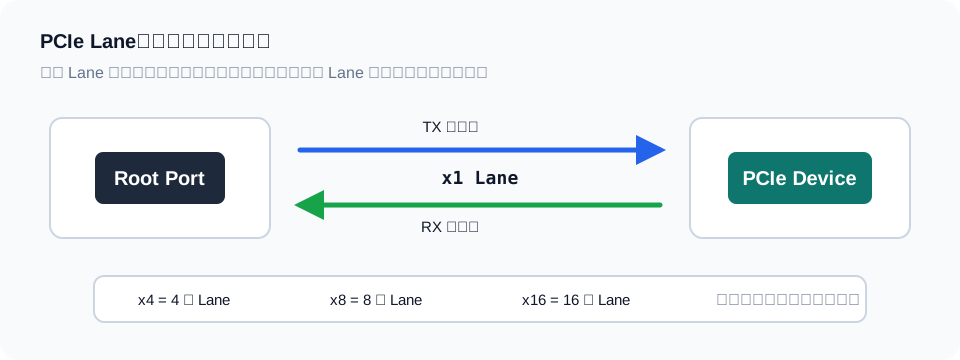
PCIe is a serial bus. Each lane consists of differential signaling pairs and can be treated as an independent high-speed data channel. Multiple lanes can be bonded together to form a wider link:
| Link width | Common use |
|---|---|
x1 |
Network cards, sound cards, capture cards, USB expansion cards |
x4 |
NVMe SSDs and some high-speed expansion cards |
x8 |
Secondary graphics slots, RAID cards, network cards |
x16 |
Primary graphics slot |
PCIe link widths usually grow in powers of two, so common widths are x1, x2, x4, x8, and x16. On consumer motherboards, x1, x4, x8, and x16 are the ones you see most often.
The physical slot length is not the same as the actual link width. A long x16 slot may only be wired for x4 or x8; an M.2 slot is usually x4, but whether it connects to the CPU or chipset also matters.
When Bifurcation Happens
PCIe device initialization can be roughly divided into several stages:
- Decide PCIe bifurcation, meaning how the lanes are split.
- Run Root Port Training to train link speed and width.
- Perform PCI enumeration so the system can discover devices.
- Configure PCIe features such as power management, error reporting, and timeout control.
Bifurcation happens very early. The system must first know whether a group of lanes is one x16, two x8 links, or several x4 links before later Training and enumeration know how many Root Ports should be handled.
When bifurcation is configured incorrectly, common symptoms include:
- An expansion card only detects one SSD.
- Devices disappear after a riser or adapter card is installed.
- A graphics card link width drops from
x16tox8. - The expected bifurcation option is missing from the BIOS.
- The motherboard manual says a split mode is supported, but only on a specific slot or with a specific CPU.
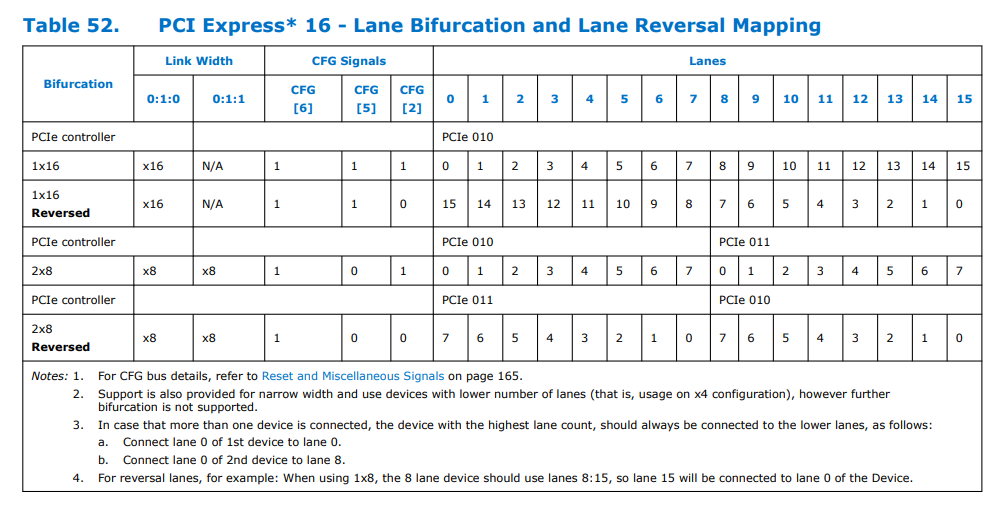
Mode One: Hard Strap
Hard Strap is a hardware method. The motherboard uses fixed pins, pull-up or pull-down resistors, or wiring to determine the PCIe split mode at the hardware level.
This is common for CPU-attached PCIe lanes on consumer desktop platforms. For example, if the CPU provides one group of x16 lanes, the motherboard vendor can design the board as:
| Configuration | Typical use |
|---|---|
x16 |
One primary graphics slot |
x8+x8 |
Two graphics slots |
x8+x4+x4 |
One graphics slot plus two CPU-attached M.2 slots |
Hard Strap is stable, simple, and low-cost. The motherboard vendor decides lane routing during PCB design, and users usually cannot freely change it in the BIOS afterward.
Its downside is poor flexibility. Once the board layout is fixed, a slot designed only as x16 cannot become x4+x4+x4+x4 unless the PCB is redesigned. That is why many consumer motherboards do not expose bifurcation options in the BIOS even if the CPU theoretically supports splitting.
For ordinary users, the most direct takeaway is this: whether a board supports PCIe bifurcation depends first on motherboard design, not only on CPU specifications.
Mode Two: Soft Strap
Soft Strap is a software-configured method, but it does not necessarily mean a user-facing BIOS menu option. In many cases, this configuration is stored in the BIOS image or platform description area and is set by the motherboard vendor before shipping.
PCIe Root Ports under the chipset often use a similar approach. Based on the actual board routing, the vendor can configure some Root Ports as independent x1 ports, or combine them into x2 or x4. These settings are usually fixed in the BIOS image and take effect during platform initialization.
Soft Strap has several traits:
- Some settings can be adjusted without changing the PCB.
- The configuration usually takes effect during early initialization.
- Changes generally require reflashing the BIOS or at least rebooting.
- The user interface may not expose the related options.
This is why two motherboards with similar-looking hardware can distribute PCIe slots, M.2 slots, and onboard devices differently depending on BIOS version or vendor configuration.
Soft Strap is still not magic. It can only adjust within the limits of the existing hardware routing; it cannot assign lanes to a slot that is not physically connected to them.
Mode Three: Wait For BIOS
Wait For BIOS is the more flexible approach. Before PCIe Training begins, the platform waits for the BIOS to write the relevant registers, and the BIOS decides how wide each group of lanes should be.
This is common on more expandable platforms, such as workstations, servers, and some Xeon platforms. These platforms provide more lanes and more complex slot combinations. If everything were fixed in hardware, motherboard adaptability would be much worse.
The advantage of Wait For BIOS is flexibility:
- The BIOS can offer options such as
x16,x8+x8,x8+x4+x4, andx4+x4+x4+x4. - One motherboard can adapt to different expansion cards.
- It is better suited for multi-NVMe adapters, PCIe backplanes, and server riser cards.
- Users can adjust the layout based on device count and bandwidth needs.
The cost is that the platform and BIOS must work together. The CPU or chipset must support the desired split, the motherboard routing must match it, and the BIOS must expose or configure it. If any of those pieces is missing, users may not see usable bifurcation settings.
Common Split Combinations
Different platforms support different combinations, but common split modes look like this:
| Original link | Common split | Typical use |
|---|---|---|
x16 |
x16 |
Single graphics card |
x16 |
x8+x8 |
Dual graphics cards, or GPU plus high-speed expansion card |
x16 |
x8+x4+x4 |
GPU plus two NVMe SSDs |
x16 |
x4+x4+x4+x4 |
Four-drive NVMe adapter |
x8 |
x4+x4 |
Dual NVMe drives or dual-port high-speed expansion |
x4 |
x2+x2 or multiple x1 links |
Less common; depends on platform support |
In DIY builds, the most common request is splitting one x16 slot into x4+x4+x4+x4 for a four-M.2 adapter card. The key detail is that cheap adapter cards without a controller chip only physically route the slot to multiple M.2 connectors. The card itself does not split PCIe lanes.
If the motherboard does not support x4+x4+x4+x4, such an adapter usually detects only the first SSD. To use a multi-drive card on a board without bifurcation support, you need an expansion card with a PCIe Switch chip, which costs much more.
Bifurcation vs PCIe Switch
Bifurcation splits existing upstream lanes into multiple downstream ports. It does not increase the number of lanes; it only changes how they are allocated.
A PCIe Switch is more like a PCIe switching chip. It connects one upstream link to multiple downstream devices, so the system can see more devices. It also cannot create extra upstream bandwidth out of nothing, but it can solve the problem of attaching multiple devices when the motherboard does not support lane splitting.
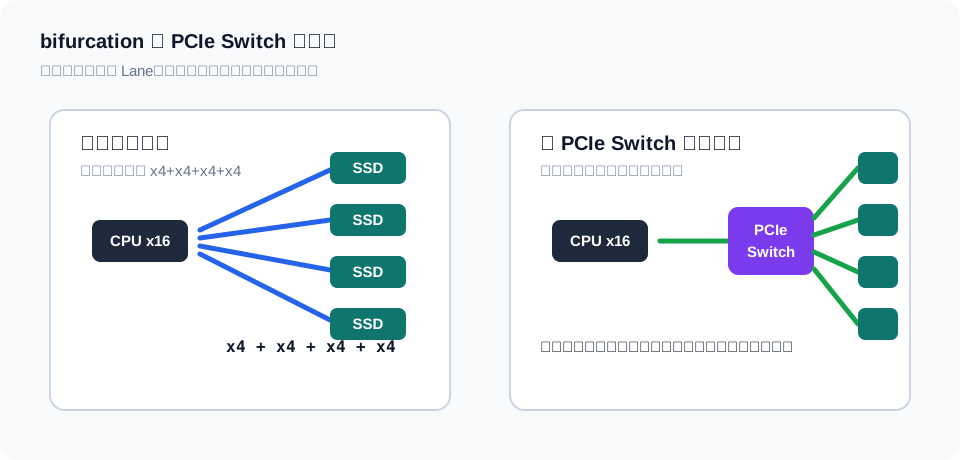
The difference can be summarized like this:
| Solution | Requires motherboard bifurcation support | Cost | Suitable scenario |
|---|---|---|---|
| Chipless M.2 adapter | Yes | Low | Motherboard supports x4+x4+x4+x4 |
| Expansion card with PCIe Switch | Not always | High | Board does not support splitting but needs multiple devices |
Before buying a multi-M.2 expansion card, check whether the motherboard BIOS supports the required split mode. A specification that only says “supports PCIe x16 slot” does not mean it can recognize four drives at once.
Buying and Troubleshooting Advice
If you want to use PCIe bifurcation, check things in this order:
- Confirm that the CPU or platform supports the target split mode.
- Check the motherboard manual to see whether the target slot supports
x8+x8,x8+x4+x4, orx4+x4+x4+x4. - Enter the BIOS and look for options such as PCIe bifurcation, PCIe lane configuration, or slot configuration.
- Confirm whether the expansion card is a chipless adapter or a card with a PCIe Switch.
- Check whether fully populating devices shares lanes with M.2, SATA, onboard networking, or other devices.
- After booting into the OS, use tools to inspect actual link width and device enumeration.
If an expansion card detects only one drive, check the BIOS split option first. If the BIOS has no related setting, it is probably not a driver issue; the motherboard is likely not splitting that group of lanes into multiple devices.
If all devices are detected but speed is wrong, then check link Training. Cable quality, adapter card quality, slot routing, PCIe generation, and device compatibility can all cause a link to fall from Gen4 to Gen3, or even lower.
Summary
PCIe bifurcation is about deciding how lanes are organized during early PCIe initialization. Hard Strap fixes the layout in hardware, Soft Strap uses platform configuration, and Wait For BIOS lets the BIOS set the mode before link training.
For ordinary PC builders, the three most important conclusions are:
- A physical
x16slot does not necessarily split into multiplex4links. - Chipless multi-M.2 adapter cards depend on motherboard bifurcation support.
- Split support depends on the CPU, motherboard routing, and BIOS options together.
Once you understand these points, x16, x8+x8, and x4+x4+x4+x4 in a motherboard spec sheet stop being just slot-length labels. They become clues for judging whether the board can meet your actual expansion needs.