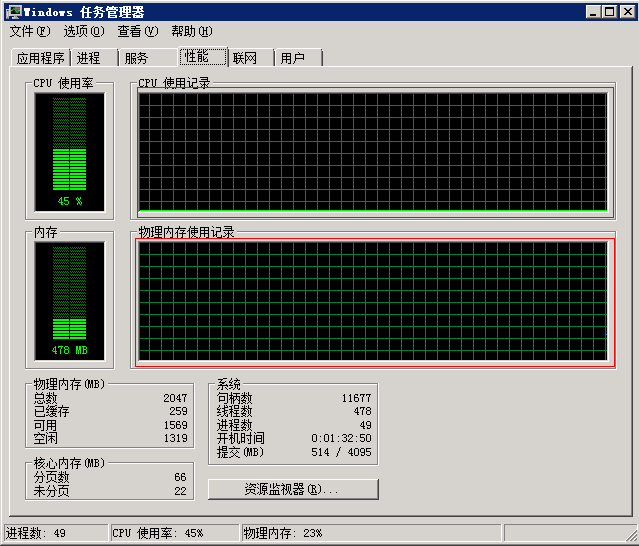
Sometimes when you open Windows Task Manager, the data on the Processes or Performance tab appears frozen. CPU, memory, disk, or network values may stay unchanged for a long time. At first glance this can look like a system problem, but in reality running programs, network traffic, and resource usage are still changing normally.
In most cases, the system is not actually stuck. The more likely reason is that Task Manager’s refresh speed has been changed to Paused.
Symptoms
Common signs include:
- CPU, memory, and other values on the
Processestab stop changing - Graphs on the
Performancetab no longer update - Programs are clearly still running, but Task Manager looks frozen
Here is an example of what the issue looks like:
Cause
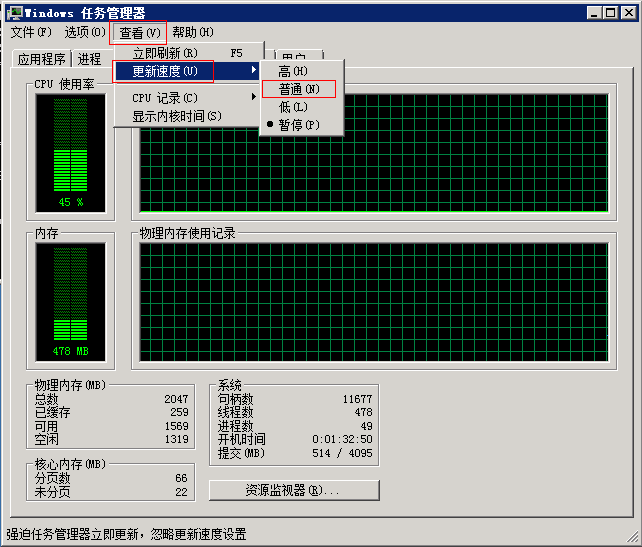
Task Manager lets you adjust the Update speed, with options such as High, Normal, Low, or Paused.
If this setting is changed to Paused, the statistics shown in the interface stop refreshing. That is why CPU, memory, or network information can appear to be completely frozen.
As shown below, this option is usually available from the View menu in Task Manager:
Fix
Check the following:
- Open Task Manager
- Click the
Viewmenu - Find
Update speed - Check whether it is currently set to
Paused - Change it back to
NormalorHigh
After that, watch the Processes or Performance tab again. In most cases, the data will start updating normally right away.
Additional notes
If the data still does not refresh after switching back to Normal, check a few other possibilities:
- Whether you are using system-tuning tools or third-party performance monitoring software
- Whether you are connected through a remote session and the interface is not refreshing correctly
- Whether Task Manager itself is stuck, in which case you can close it and open it again
That said, in most cases this issue is simply caused by Update speed being accidentally set to Paused, so checking that first is usually the fastest fix.